This post looks at customizing the sign-in UI and the sign-in options in an ASP.NET Core application using Duende IdentityServer and ASP.NET Core Identity. There are multiple ways of changing the look and feel of the UI for different OpenID Connect clients or different client flows.
Code: https://github.com/damienbod/duende-multi-tenant
Blogs in the series
- Multiple client sign-in customizations using Duende identity provider
- Customizing a single client sign-in using parameters in Duende IdentityServer
Setup
The solution is setup using three different ASP.NET Core applications. In the example code, the “Admin” application has different federation authentication options compared to the “Shop” client authentication sign-in experience. The client ID from the authentication context is used to customize the look and feel, i.e. the styles, the layout and the options of the client are used to define which federation and authentication options are possible.

Customization of the sign-in options
The EnableLocalLogin parameter and the IdentityProviderRestrictions parameter from Duende IdentityServer can be used to change the sign-in options for the end user of the applications. If the EnableLocalLogin option is set to false, the define username, password login is disabled. The IdentityProviderRestrictions setting can be used to define which federation options are allowed for the client sign-in.
new Client
{
    ClientId = "shop-client-ui",

	// more client options ...

    // show/hide the local authentication screen
    EnableLocalLogin = false

    // federated authentication options to display
	// empty displays all
    IdentityProviderRestrictions = ["AdminEntraID"]
},
Layout Customization for clients
Sometimes the identity provider application need to display a different look and feel for the different clients. To achieve this, a separate login screen is used and each login screen uses a different layout. The layout and the style are changed using the client ID from the authorization context. If the shop client is used, the user is redirect to a different Razor Page. The UseShopClientDisplay bool is used for this.
private async Task BuildModelAsync(string? returnUrl)
{
    Input = new InputModel
    {
        ReturnUrl = returnUrl
    };

    var context = await _interaction.GetAuthorizationContextAsync(returnUrl);
    if (context?.Client.ClientId == "shop-client-ui")
    {
        View = new ViewModel
        {
            UseShopClientDisplay = true
        };

        // Process in the shop client login
        return;
    }

    // standard code from duende template
}
In the Login Razor Page on get method, the user is redirected to a different layout if the UseShopClientDisplay is true. The returnUrl is passed as a parameter.
public async Task<IActionResult> OnGet(string? returnUrl)
{
    await BuildModelAsync(returnUrl);

    if (View.IsExternalLoginOnly)
    {
        // we only have one option for logging in and it's an external provider
        return RedirectToPage("/ExternalLogin/Challenge",
				new { scheme = View.ExternalLoginScheme, returnUrl });
    }

    if (View.UseShopClientDisplay)
    {
        return RedirectToPage("ShopClient", new { returnUrl });
    }

    return Page();
}
The HTML part of the Razor Page uses a different Layout and the Layout is set explicitly in the Razor Page.
@page
@model IdentityProvider.Pages.Login.ShopClient
@{
    Layout = "Shared/_LayoutShopClient";
}
<div class="login-page">
    <div class="lead">
        <h1>Shop Client Login</h1>
        <p>Choose how to login</p>
    </div>
Different, options, styles and layouts can be setup for any clients.
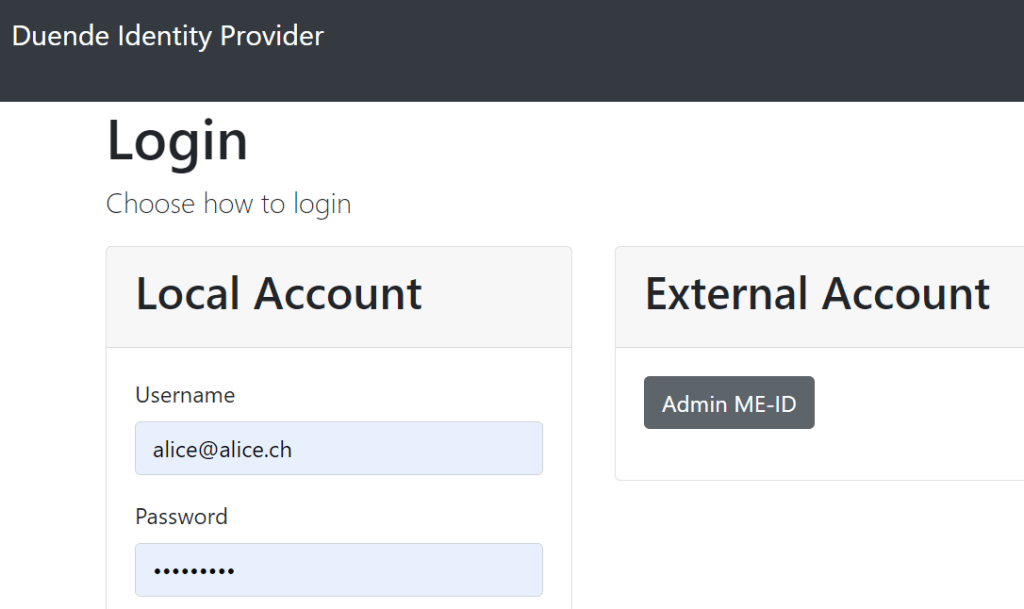
Or a different client display using the ClientID as the switch:
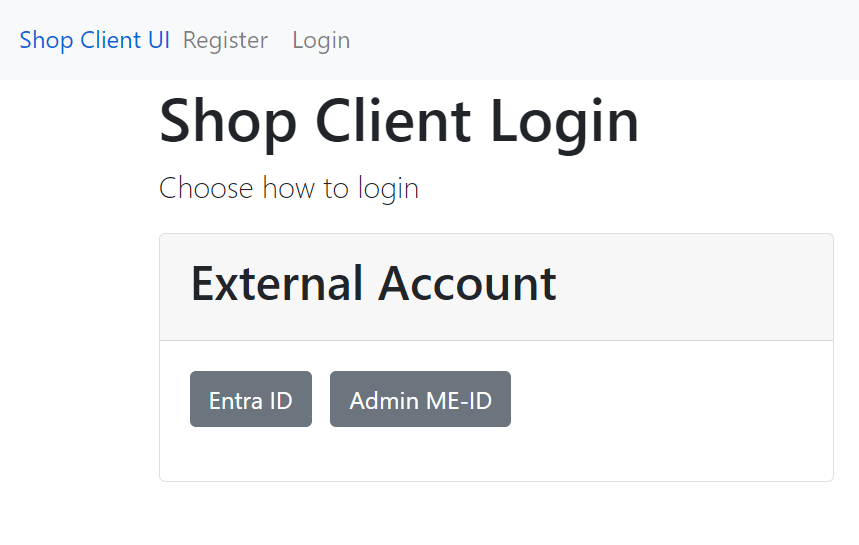
With this setup any CSS and any layout can be used for the different clients. This is one way of having a multi-tenant or multiple client setup. This setup uses a different Client ID to style and add or remove options.
Notes
This works well and does not require much effort. Sometimes customization is required within a single client. If you intend to use this in a multiple tenant solution, you should disable the default sign-in screen if building from the ASP.NET Core Identity templates. In a follow up post, I will look at further customization within a single client option.
Links
https://docs.duendesoftware.com/identityserver/v7
https://docs.duendesoftware.com/identityserver/v7/ui/federation/

 Software Engineering
[…] Multiple client sign-in customizations using Duende identity provider (Damien Bowden) […]
[…] Multiple client sign-in customizations using Duende identity provider […]